
Bitget CFD demo account user guide
Bitget CFD demo account user guide
To help you understand CFD trading mechanisms at no cost and test quantitative, long, and short strategies risk-free, Bitget CFD has launched the demo account feature.
A demo account allows you to experience the full range of CFD trading features without using real funds. Here's a feature overview and user guide.
1. Eligibility:
You must have a Bitget account and create a CFD live trading account.
- Create a CFD demo account.
Demo account setup: Select Sign up for CFD now on the demo trading interface to create an account.
2. How to access, view, and exit demo trading
Web
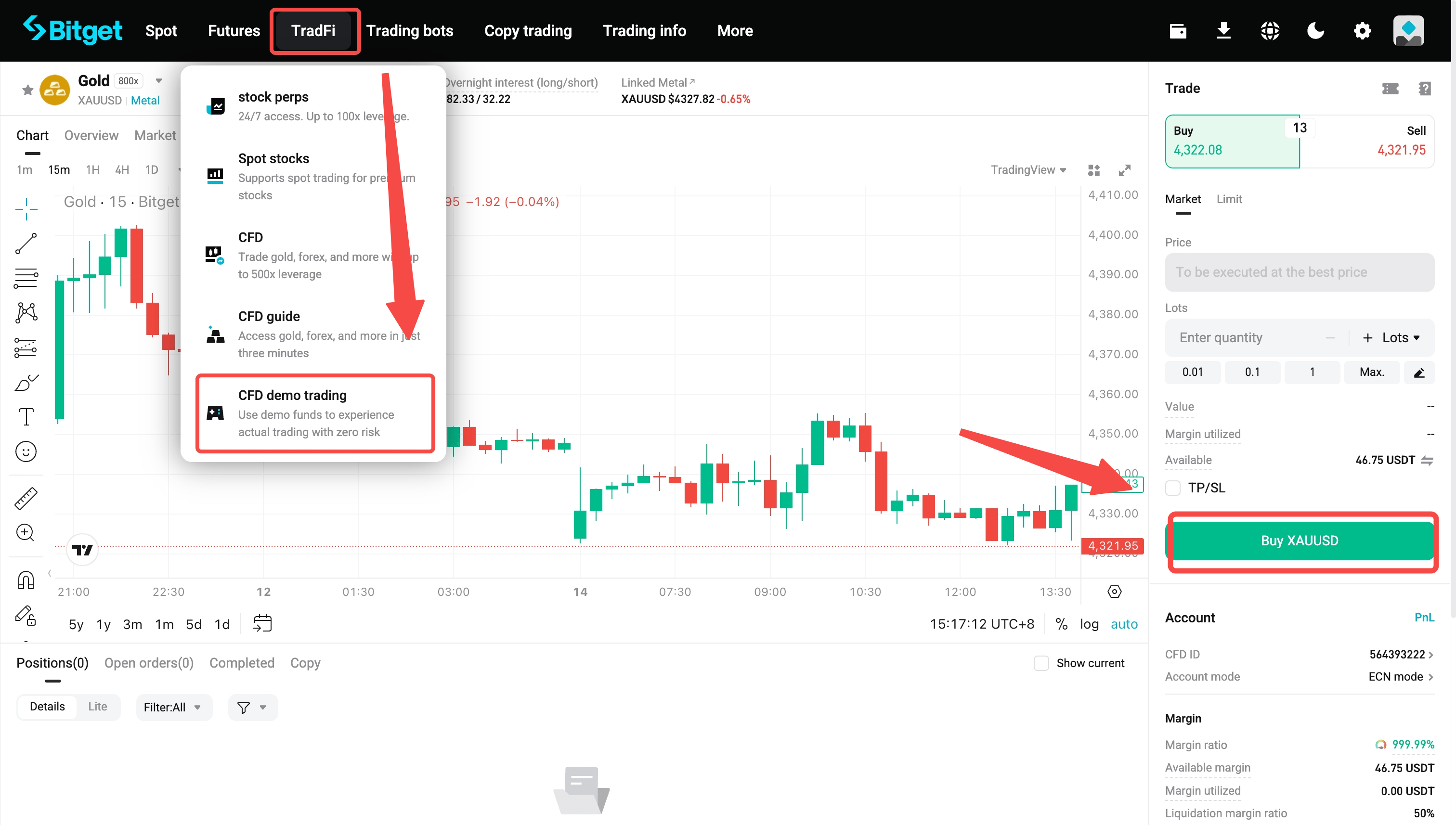
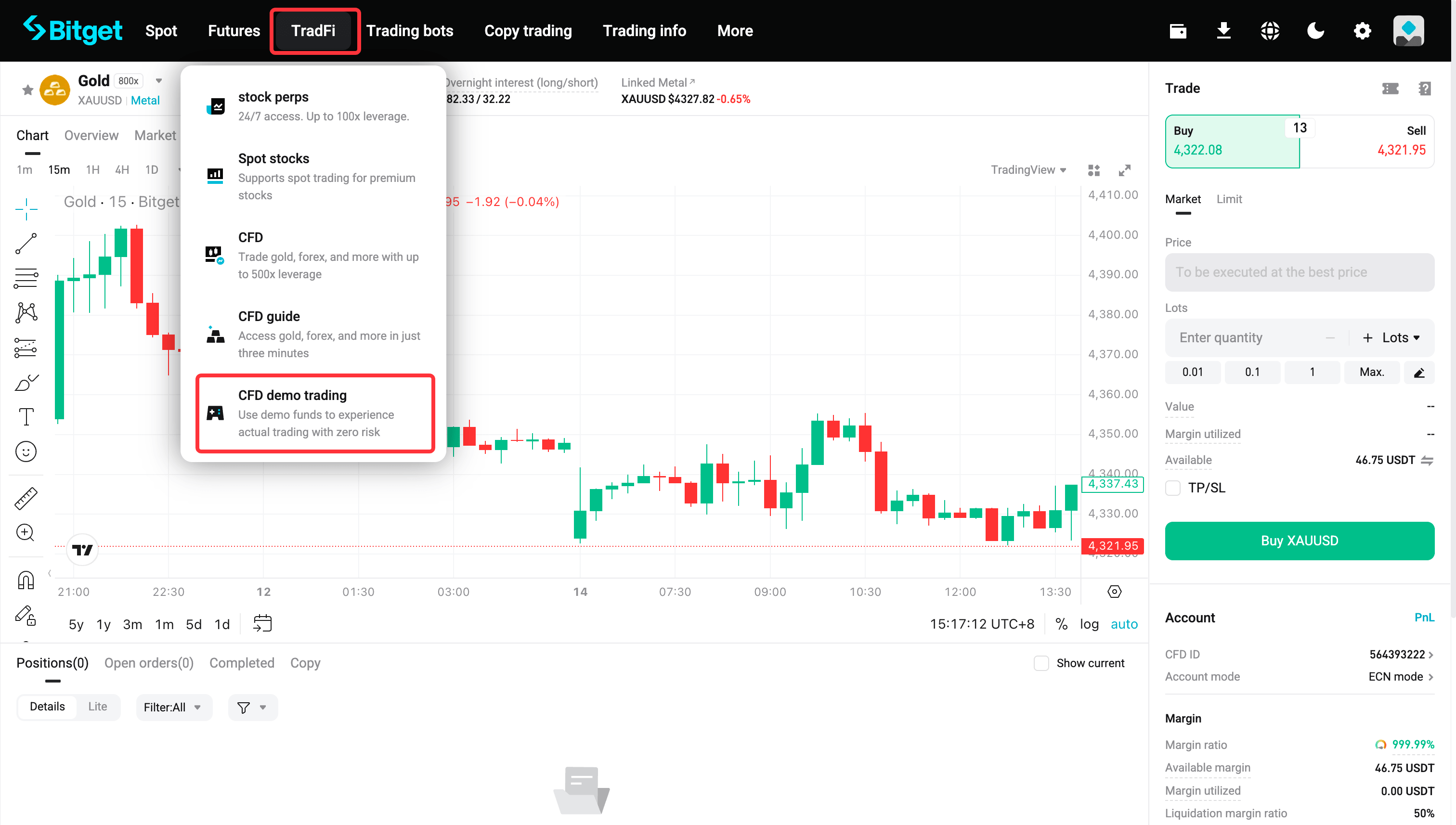
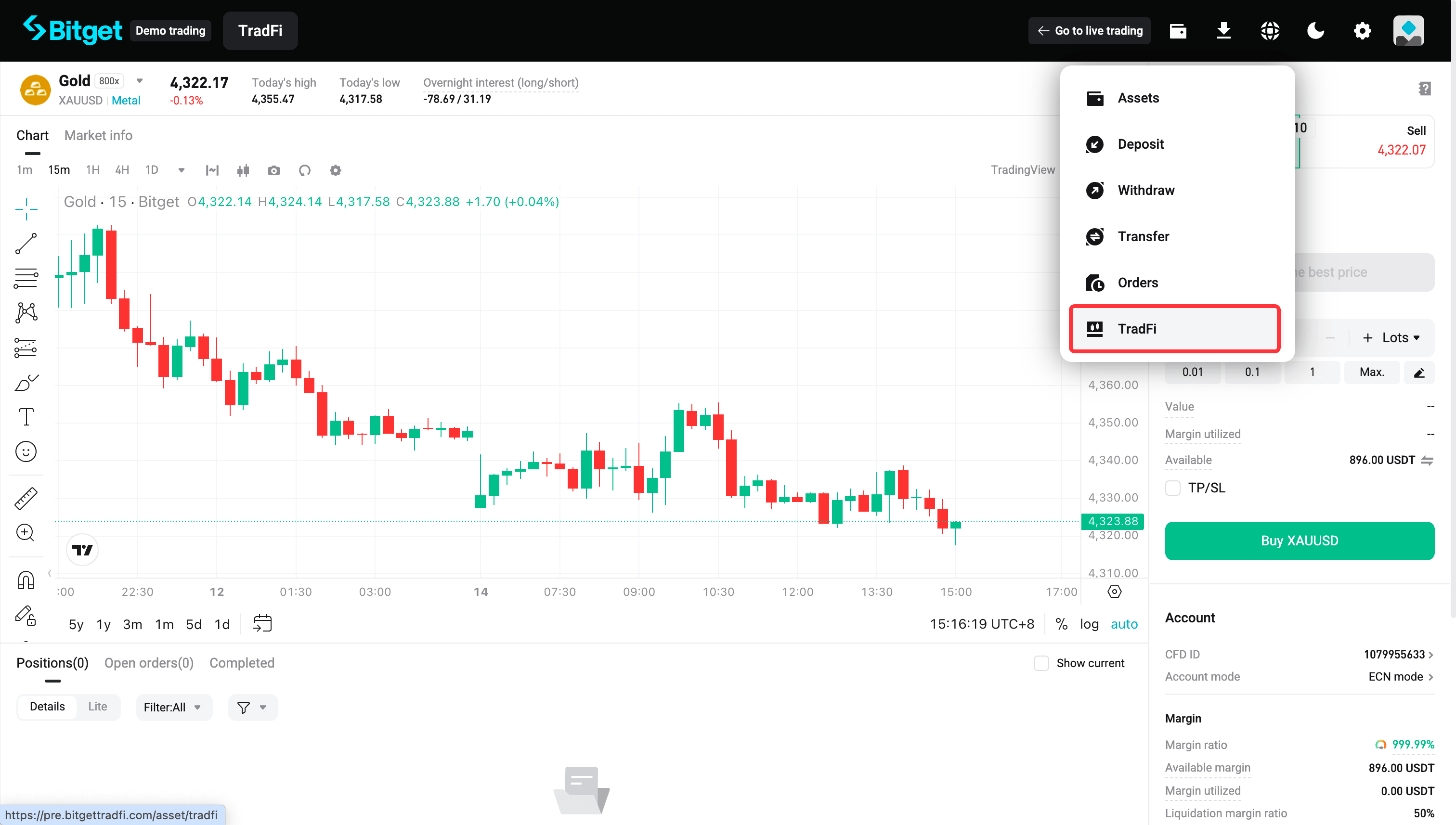
Access demo trading: Go to the CFD trading page, select CFD demo trading from the TradFi menu in the top navigation bar.
- CFD trading page
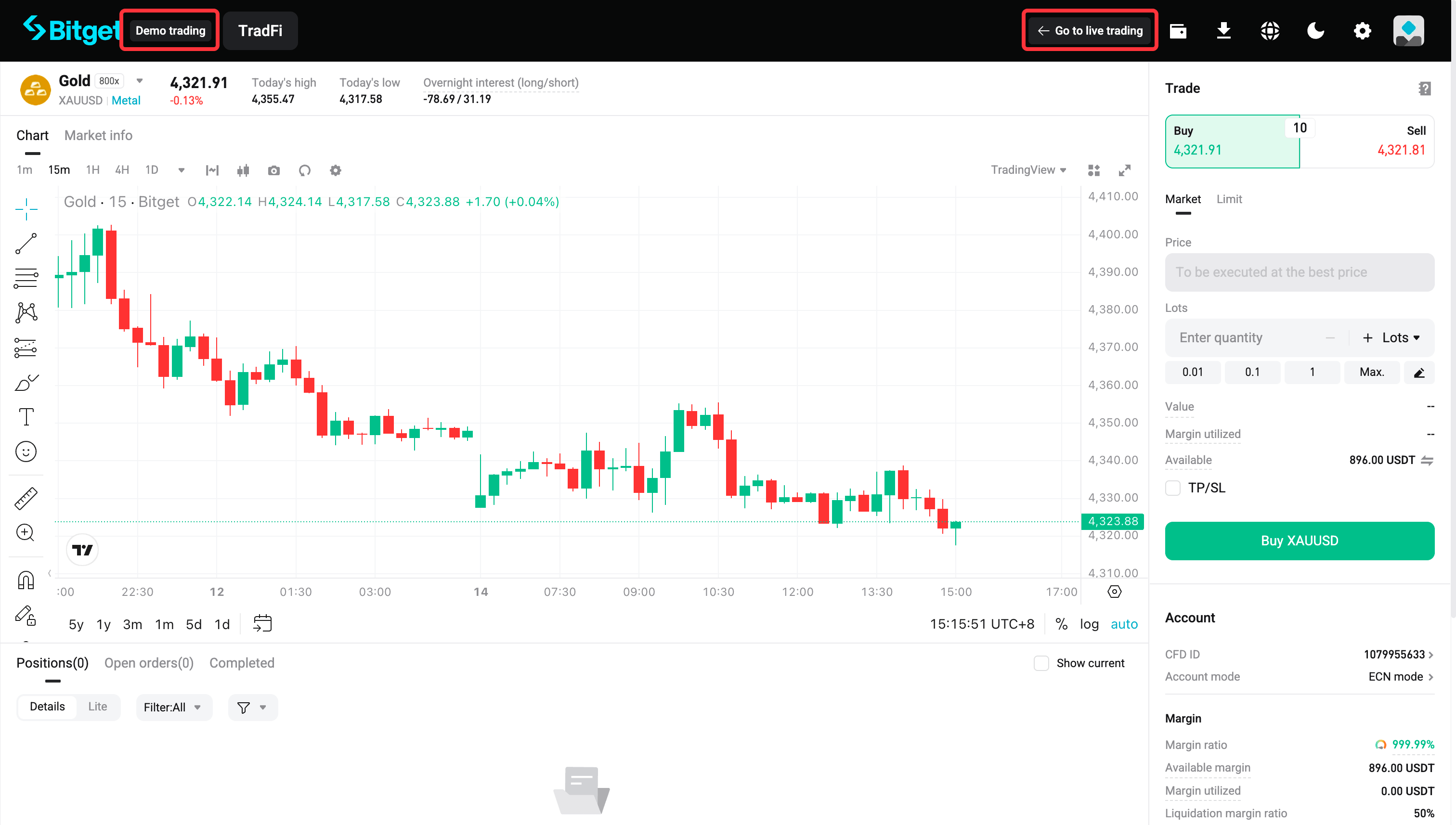
- Exit demo trading: While in demo trading mode, select Go to live trading in the top right corner to exit.
- View assets and orders: You will find features such as asset overview and trading history from the upper-right corner of the page.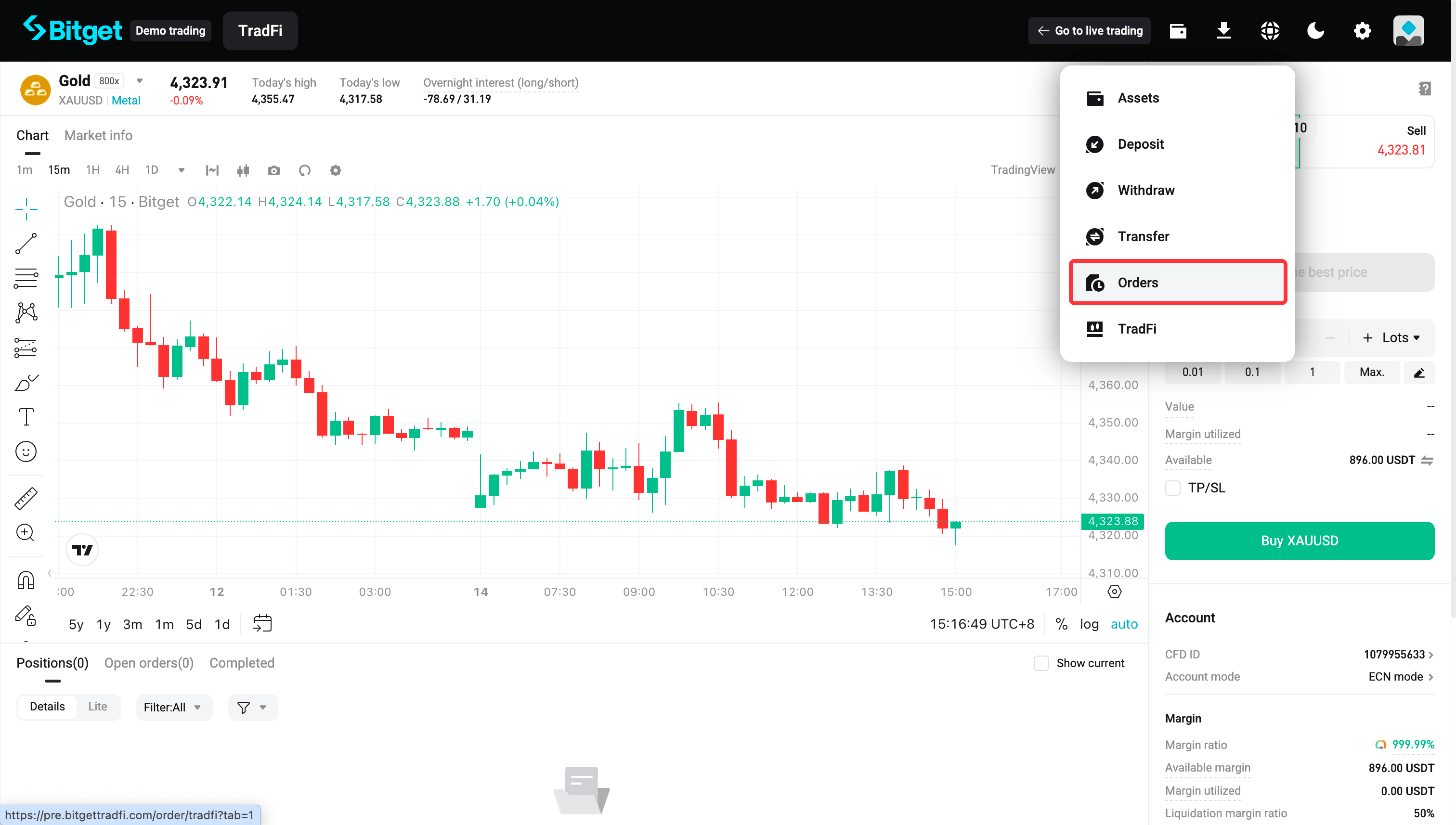
App
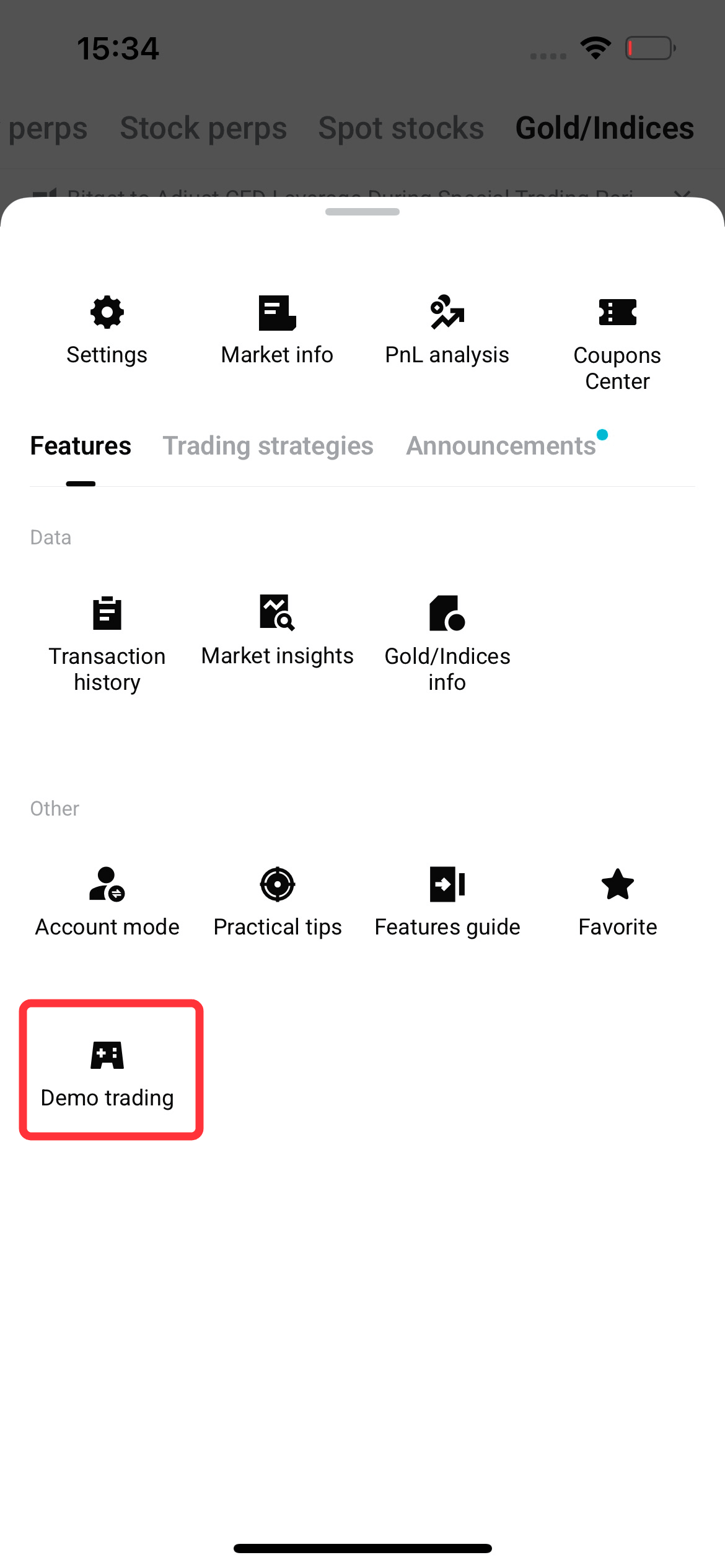
- Access demo trading: Go to the CFD trading page, tap the three-dot icon in the top right corner, and then select Demo trading.
Note that you must update your Bitget app to version 2.94.0 or later to access CFD demo trading. 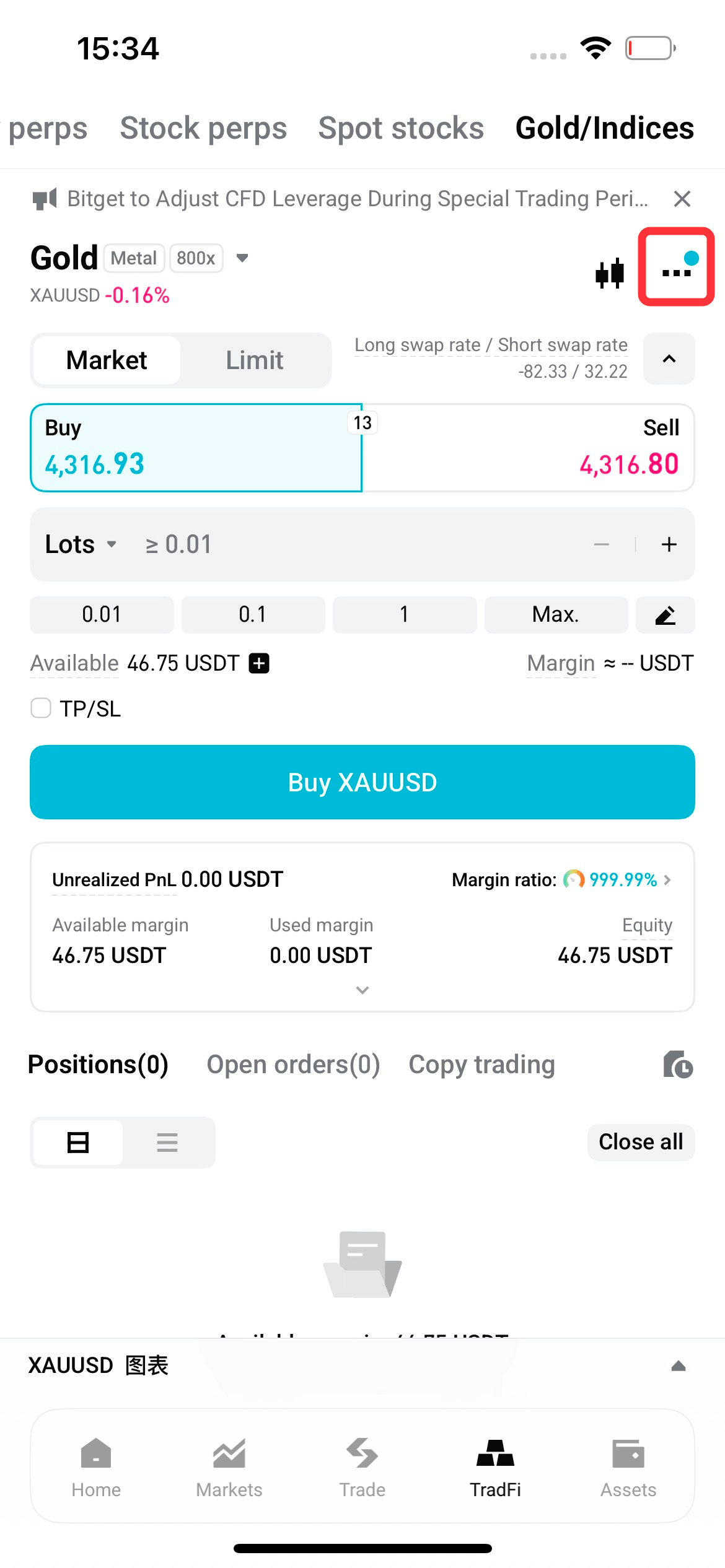
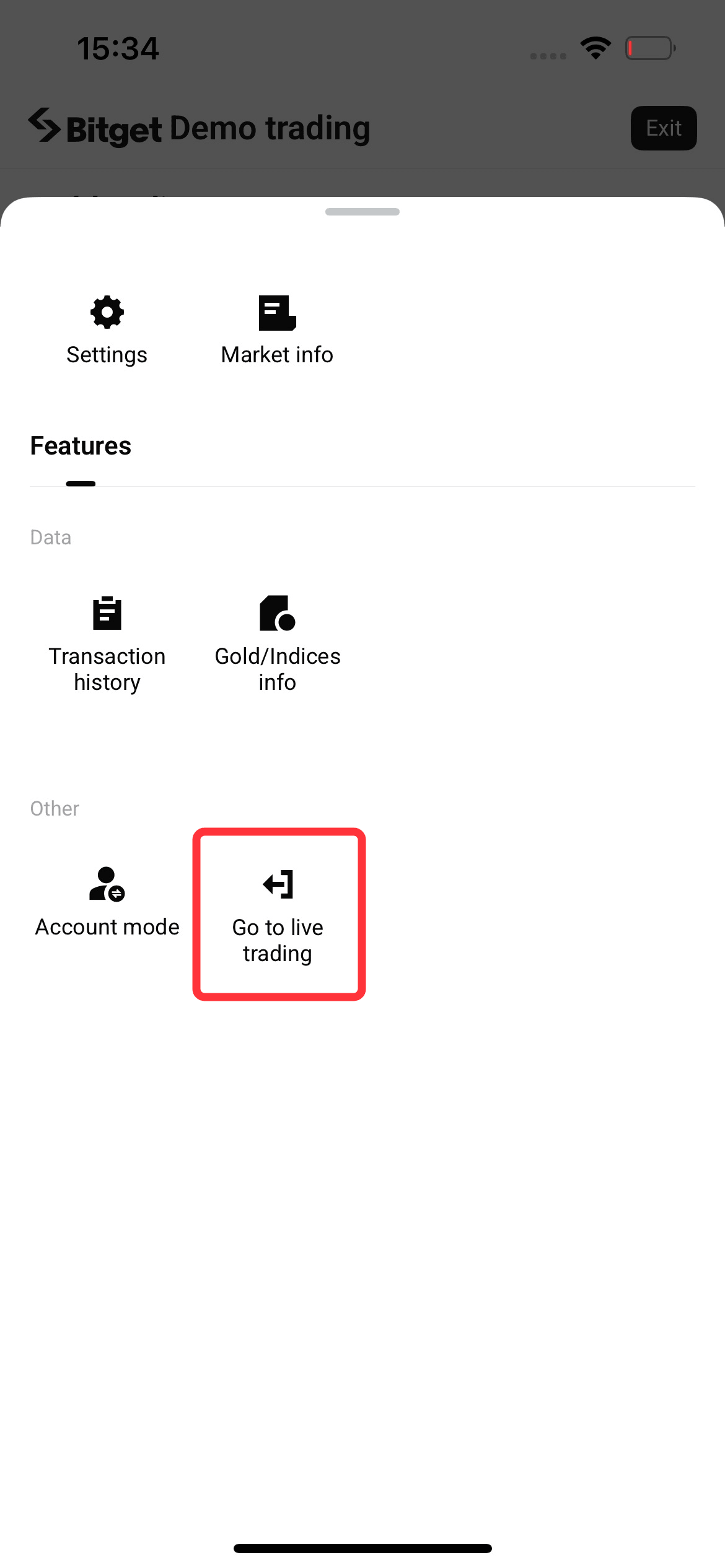
- Exit demo trading: Tap Exit in the top right corner of the demo trading interface to exit, or tap the three-dot icon and select Live trading.
3. Account features
- Demo funds: You will receive 1,000 USDT in demo funds after you create the demo account. You can increase or reduce the balance at any time by selecting Adjust demo trading funds. The default maximum amount you can add is 1000 USDT.
- Trading: You may place and cancel orders, set take-profit and stop-loss orders in advance, open positions, and close positions in various ways (partial, full, and one-click close).
- Account mode: Demo trading supports both ECN mode and zero-fee mode. The demo trading modes are independent of live trading and do not affect each other.
- Market data: The system offers all CFD instruments across forex, precious metals, commodities, and indices, using real-time market data.
4. Risk control notifications and validity rules
- Risk control parameters: The liquidation risk ratio for demo accounts is identical to that of live trading accounts. When a margin call or liquidation is triggered, the system will send you notifications via email, app push notifications, and site messages.
- Dynamic leverage: The dynamic leverage settings for demo accounts may differ from those for live trading, and leverage adjustments during special trading periods are not supported. Refer to the leverage displayed on the demo trading page for the actual leverage.
- Validity and archiving: Demo accounts are valid for 30 days. Upon expiration, the system will automatically cancel all pending orders and close all positions, after which the account will enter an archived status. You can use the activation button to restore an archived demo account at any time and receive new demo funds. No additional identity verification is required for the activation.
5. Notes and feature restrictions
To distinguish demo trading from live trading, demo accounts are subject to the following restrictions:
(1) Funding method: You cannot transfer funds from your Bitget main account. Demo funds can only be added or deducted through the Adjust demo trading funds feature.
(2) Limited data: The PnL analysis module is not available in demo accounts.
(3) Perk ineligibility: Demo trading volumes are not included in any official promotion statistics or affiliate rebate systems.
(4) Label: A Demo trading label will remain visible at the top of the demo account page. Position data sharing posters generated in demo accounts will also display a Demo account label, which cannot be hidden.
(5) Separation: Assets or positions in a demo account will not affect normal operations in your live account or the Bitget account deletion process.
If you have any questions using the features, feel free to contact Bitget customer service for assistance.
The Bitget Team
*This announcement is time-sensitive. Please note the date of publication. The platform assumes no responsibility for any direct or indirect losses arising from changing circumstances or outdated content.